
iPhone 스크린샷
iPhone Duo 활용 방식
Duo support is reported in the linked sources. The specific fold interaction and real-device behavior have not been independently verified.
새로운 기능
버전 2.2.0 ·
• Add a widget to your Home Screen: choose from recent film, film of the day, or chosen film • Open a film from Siri or Shortcuts, and find films by title in Spotlight • Add photos to a film from the share sheet in Photos or from Shortcuts • While editing text, Undo and Done now appear in the toolbar • Support for iPhone Duo • Minor fixes and improvements
개발자가 이 내용을 한국어로 제공하지 않았습니다.
앱 소개
Duo support is reported in the linked sources. The specific fold interaction and real-device behavior have not been independently verified.
영어 원문을 번역한 내용입니다.
App Store 설명개발자가 작성한 내용입니다.
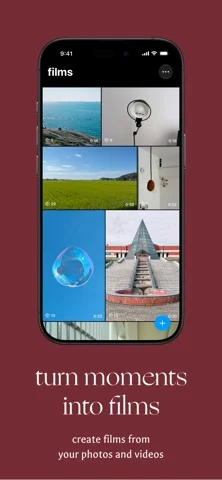
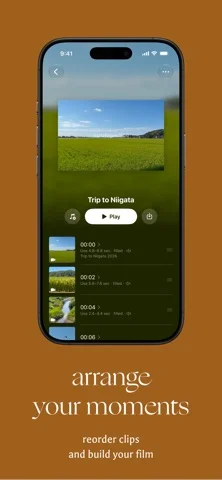
oblivious is an app for turning the photos and videos in your camera roll into a film and making a vlog, a little like making a mixtape or a music playlist. Choose the moments in your camera roll you want to keep, arrange them in any order, adjust how they are framed, and finish the film with a soundtrack. Your moments might be views you saw while traveling. They might be ordinary scenes from everyday life. They might be expressions you did not notice at the time, or small events you had almost forgotten. When you place those moments together, you may start to notice a flow or impression that was not there when you looked at each one on its own. What is oblivious? • A simple app for collecting short moments and turning them into films • Like choosing songs and deciding their order for a mixtape, you choose the moments you want to keep and arrange them into a film Ways to use oblivious • Turn memories from a trip into a short film • Keep everyday photos and videos like a diary • Collect time spent with family and friends • Make a film for someone • Create short videos for social media • Make a simple promotional video • Keep a personal visual record From moments to films • Choose photos and videos from your camera roll and add them as moments • Mix photos and videos in the same film • Arrange moments in any order • Photos play as individual moments • Choose the part of a video you want to use as a moment • Set moment length to 1, 2, or 3 seconds for each film • Choose from 16:9 / 3:2 / 4:3 / square aspect ratios • Use films in either portrait or landscape orientation By placing photos and videos together, a different rhythm and flow can emerge than when you view each one on its own. Refine each moment • Adjust how each moment is framed to fit the film • Keep the part of a photo or video you want to show while refining the composition • Choose the exact section of a video to use as a moment • Add text, or burn in the date and time a moment was captured • Lightly overlay the previous moment to help line up the transition • Choose whether to include the original audio from individual video moments Soundtrack • Add a soundtrack to your film • Finish a film without a soundtrack if you prefer • Use original audio that you have the rights to Create a soundtrack Create a soundtrack made for your film. What is in the image, the words you wrote, the light, the time it was captured — the film is read, and music takes shape from it. All of that reading happens on-device. Your photos, videos, and written text themselves never leave your device. • Create one soundtrack per film, up to 3 per month across all films • Creation continues even if you leave the app, and you can stop it at any time • A soundtrack created for one film can also be used in another Choose a look and export The export screen lets you choose a look (LUT) to finish the color of your film. • Choose from 16 looks, plus Original with no added look • Import your own .cube (3D LUT) files and use them as looks • Drag to adjust the strength of the look • Tap the video to compare it with Original • A look does not change the film itself — it is only applied to the exported video • Save your finished film to your photo library • Share it with other apps to post on social media or send to someone Sync across devices • Sync films, soundtracks, and settings with iCloud • Syncing stays off until you enable it in Settings Settings • Open Settings from the “…” menu in the film list • Choose Light, Dark, or System appearance • Decide what happens after creating a film or adding a moment
iPhone Duo에서의 oblivious — vlog maker: 자주 묻는 질문
oblivious — vlog maker은(는) iPhone Duo에 최적화되어 있나요?
개발자 또는 스토어가 iPhone Duo 지원을 안내합니다.
iPhone Duo에서 oblivious — vlog maker은(는) 어떻게 보이나요?
Duo support is reported in the linked sources. The specific fold interaction and real-device behavior have not been independently verified.
oblivious — vlog maker의 가격은 얼마인가요?
oblivious — vlog maker은(는) App Store에서 무료로 다운로드할 수 있습니다.
다른 크리에이티브 앱
모두 보기 ›
Duo 인터랙션에 관한 출처가 있습니다. 실제 기기 동작은 별도로 검증하지 않았습니다.

Duo 인터랙션에 관한 출처가 있습니다. 실제 기기 동작은 별도로 검증하지 않았습니다.

Duo 인터랙션에 관한 출처가 있습니다. 실제 기기 동작은 별도로 검증하지 않았습니다.

Duo 인터랙션에 관한 출처가 있습니다. 실제 기기 동작은 별도로 검증하지 않았습니다.

사용자 지정 브러시와 무제한 레이어를 갖춘 드로잉·페인팅 앱

전면·후면 카메라로 동시에 녹화