How to Set an iPhone Duo Wallpaper: Crop, Preview & Save
A practical iPhone Duo wallpaper setup guide: choose a cleared image or your photo, crop for inner and cover displays, download clean JPEGs and set a wallpaper in iOS.
Published · 5 min read
On this page
Start with the image, check both shapes, then set the downloaded photo as your wallpaper. This guide walks through the DuoKits wallpaper studio and Apple’s documented wallpaper controls. The browser workflow and exports were checked on October 28, 2026; the system steps below come from Apple Support, not a new physical-device test.
1. Choose a wallpaper or your own photo
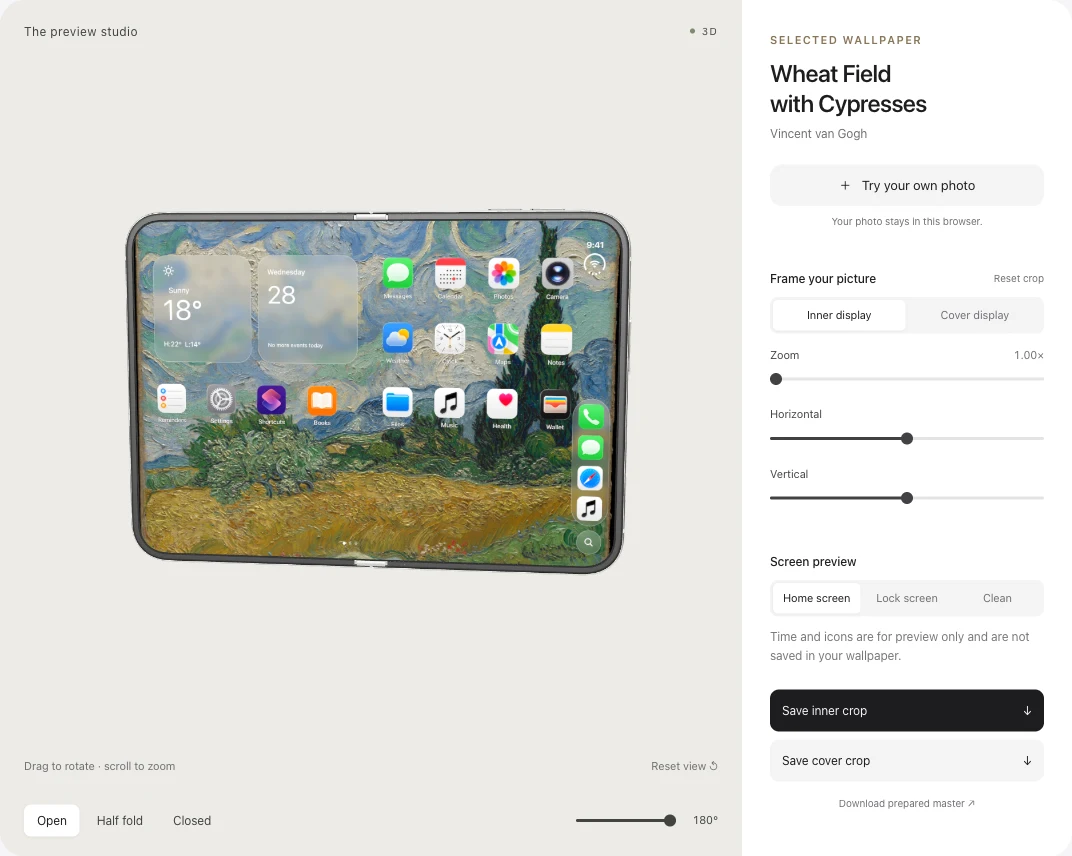
Open the wallpaper collection and choose Preview on an image, or open Wheat Field with Cypresses to follow the example in the screenshot. The collection uses cleared Met Open Access art and USGS imagery; every item links to its source and license.
For a personal photo, choose Try your own photo. Supported files are JPEG, PNG, WebP and AVIF up to 20 MB. Processing stays in the browser. You can load a photo and download crops without an account; uploading it to the preview does not publish it to the collection.
2. Frame the inner display, then the cover
Choose Inner display under “Frame your picture.” Adjust zoom and the horizontal and vertical sliders. Keep the main subject away from the centre crease if losing it across the fold would spoil the composition. Then choose Cover display and adjust its crop separately.
| Export | Dimensions | What to consider |
|---|---|---|
| Unfolded inner display, landscape | 2670 × 1878 pixels | A wide composition with room for icons and the fold |
| Cover display, portrait | 1398 × 2034 pixels | A narrower subject placement and space for the clock |
These are the studio’s output sizes, matching the display dimensions in Apple’s specifications, with the inner display expressed in landscape. System positioning and cropping can still change the visible result. Look for the crop-quality indicator: a source with too few pixels will be enlarged. Less zoom or a larger source may give a sharper result.
3. Check the open, half-folded and closed views
Use Open, Half fold and Closed, or move the opening-angle slider. Drag the model to inspect another view. Switch among Home screen, Lock screen and Clean to check whether icons or the clock cover something important.
This is a 3D composition preview. It does not install a wallpaper on your phone, reproduce every iOS layout setting, or create an animated wallpaper file. If 3D cannot load, use the two flat previews to adjust and save the crops.
4. Download the two clean images
Choose Save inner crop and Save cover crop. Each download is a JPEG of that screen’s crop; the clock, app icons and preview widgets are excluded. File names include inner-2670x1878 or cover-1398x2034, making the two versions easier to distinguish.
On iPhone, check the browser’s downloads and open the image. Use Share → Save Image if it is in Files rather than Photos. When preparing the image on a computer, transfer the JPEG to the phone, for example using AirDrop, then make sure it is available in Photos before opening wallpaper settings.
5. Set the image as a wallpaper in iOS
Following Apple’s wallpaper instructions:
- Open Settings → Wallpaper → Add New Wallpaper.
- Choose Photos and select the downloaded image.
- Check the position in the system preview, customize it if needed, then tap Add.
- Choose Set as Wallpaper Pair to use the selection on both the Lock Screen and Home Screen. Choose Customize Home Screen if you want a separate Home Screen treatment.
Apple’s iOS user guide also documents the Home Screen Blur option. If an image looks softer after applying it, check that setting and the system crop before exporting another file.
Inner/cover and Home/Lock mean different things
Inner and cover describe the device’s display shapes. Home Screen and Lock Screen describe two system interfaces. “Set as Wallpaper Pair” refers to the latter; it should not be read as a promise to assign the two exported files to separate physical displays automatically.
The current studio uses one source image with two independently adjustable crops. It does not yet select a different source photo for each display. Keep both exports and use the wallpaper controls available in your installed iOS version; this guide does not assume an unverified inner/cover assignment menu.
If the result is not what you expected
- Clock or icons hide the subject: move the subject in that screen’s crop, then check the Lock or Home preview again.
- The downloaded image looks soft: check whether the quality indicator says it was enlarged. Reduce zoom or start with more source pixels.
- The saved file has no clock or icons: that is the intended clean export. iOS draws its own interface when you apply the image.
- 3D will not load: retry 3D or continue with the flat crop previews; downloads do not require the model.
- You want an animated or Spatial Scene wallpaper: the studio exports static JPEGs. Apple’s eligible-photo effects are a separate system feature and are not guaranteed for a particular crop.
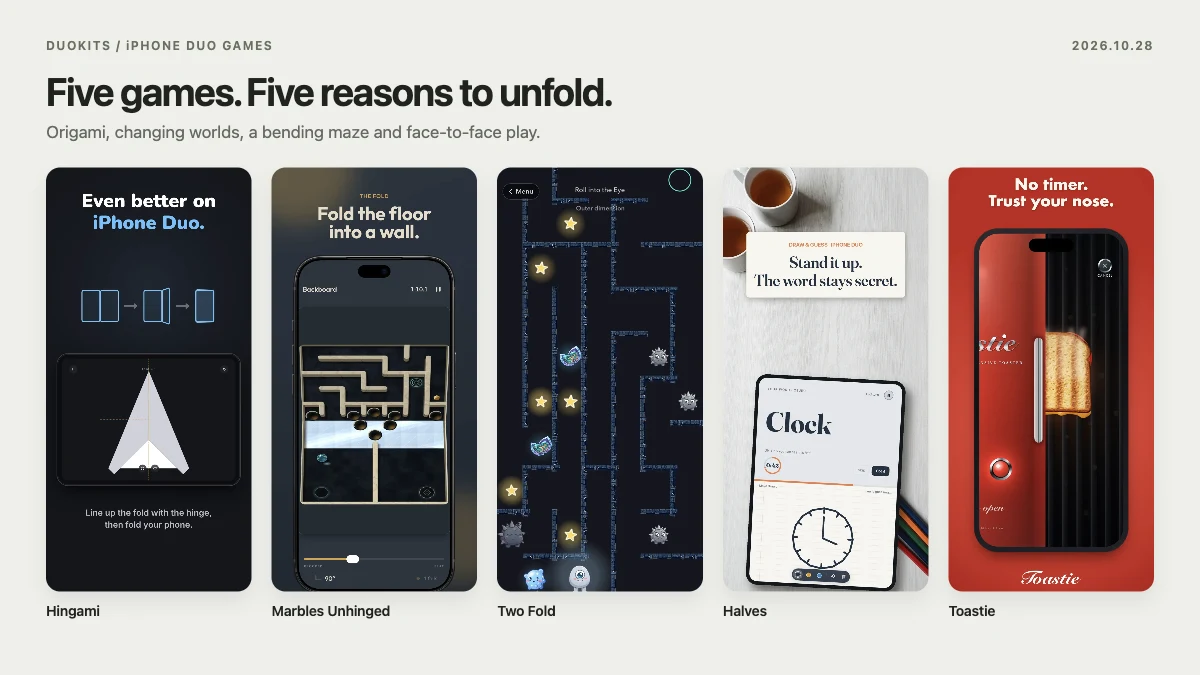
Return to the free iPhone Duo wallpaper collection, or find a use for the fold in our five game picks.