Beyond fullscreen: 8 iPhone Duo apps that give the fold a purpose
From a hinge-wound watch to two-page movie tickets: eight documented app designs show when paired views, separate controls and folding gestures make sense.
Published · 14 min read
On this page
- Eight apps, three different reasons to unfold
- Charnière: closing the phone becomes a commitment
- Volet: a canvas that has more than one face
- DP8: the lesson stays above the instrument
- Flicit: a movie diary with somewhere for the ticket to go
- World Clock: compare the meeting while keeping the calendar
- Ruply: keep the split list beside its detail
- Trace Health: the record and its context remain together
- Axios: an illustration and its reading can share a spread
- Compare three arrangements using the same task
- Record one complete sequence
- Give developers a problem they can recognize
- Choose an app by what remains visible
- Fullscreen is the beginning of the story
Close the phone to seal a countdown inside a digital pocket watch. Open it again, and a movie ticket can travel from one page to the other. These are more inviting reasons to pick up a Duo than another announcement that an app now fills the display.
Other improvements are quieter: a calendar stays beside the meeting time, or an expense list remains visible while you inspect a record. They may make less dramatic launch videos, but they could save you a few trips between screens every day.
Apple’s October 22 developer showcase includes both current experiences and updates scheduled for later. A name appearing in a launch announcement should not be read as proof that every promised feature is available today. Here, we look at eight apps with specific behaviors described in their own App Store listings, checked on October 27, 2026.
The eight apps below describe specific interactions in their own store materials. This is a look at those designs and the people they might suit, rather than a hands-on review. Follow the linked version notes for availability.
Eight apps, three different reasons to unfold
| Reason | Apps | What changes |
|---|---|---|
| Keep related information together | World Clock, Ruply, Trace Health, Axios | Selection and detail, or two related kinds of information, remain visible. |
| Give each half a job | DP8, Flicit | Content and interaction have distinct places rather than competing for one view. |
| Make the hinge part of the activity | Charnière, Volet | Folding or changing posture affects a timer or a design’s movement. |
These are different kinds of benefit. A useful two-column layout does not need an elaborate hinge gesture. A delightful folding animation does not automatically make an app more useful for work. Start with the task, then decide whether the interaction earns its complexity.
Charnière: closing the phone becomes a commitment
Charnière’s App Store description turns the cover into a watch lid. In laptop pose, tilting winds a countdown; closing seals it, and opening early can break that seal. It is an in-app experience, not a replacement for the system wallpaper.
That makes it a useful example of a physical action carrying meaning. On an ordinary timer, tapping Start is largely detached from the object in your hand. Here, closing the device is part of the timer’s language. The relevant question is whether that ritual helps you begin a task or simply adds a step you will stop using.
For a focused work session, consider how you want to interrupt yourself. An interaction built around keeping something closed creates a different expectation from a timer designed to remain visible beside other apps. That difference is more informative than counting watch faces.
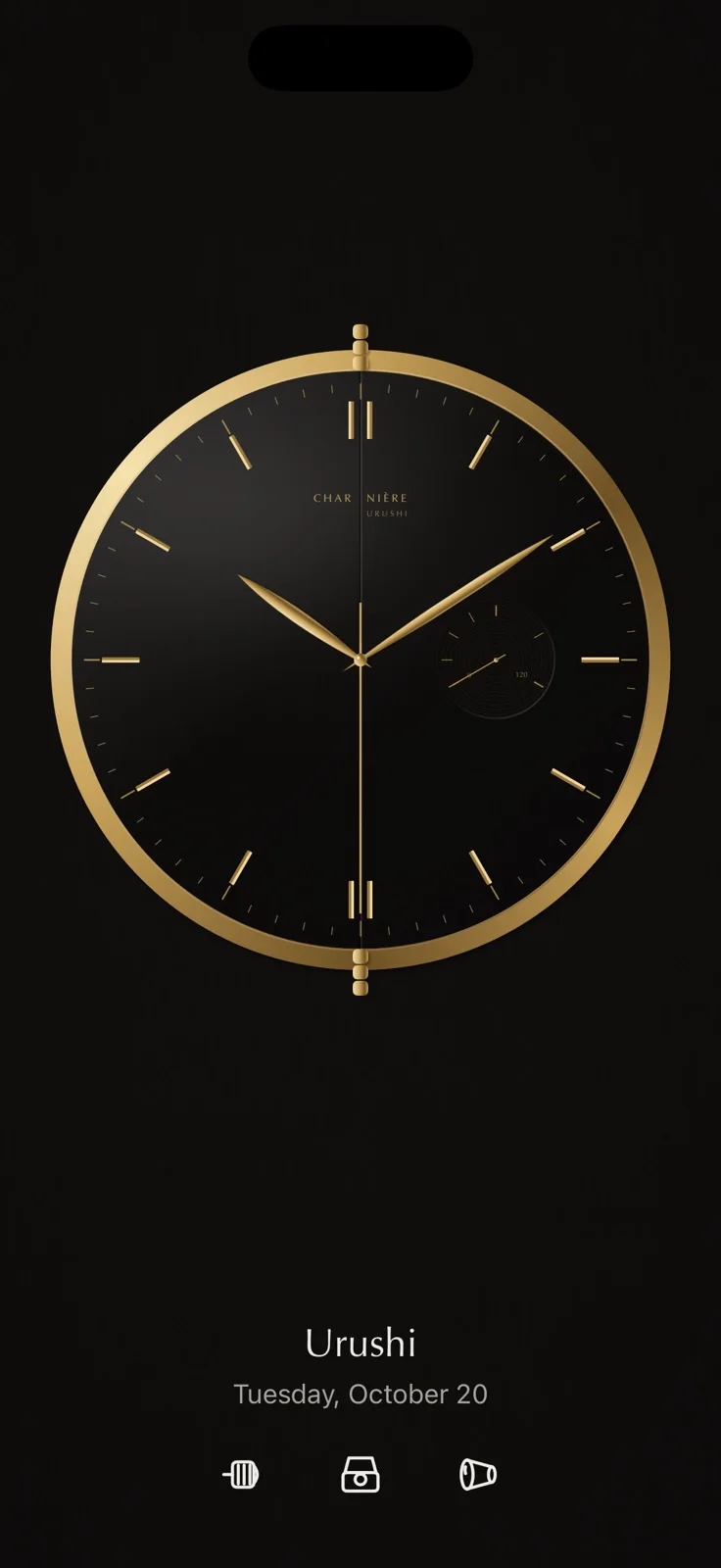
Reading a chapter is a good way to picture the appeal. Instead of checking the remaining minutes repeatedly, you set aside the time and close the object. The choice is partly about attention: do you want the timer to keep inviting a glance, or to mark a period when the phone can be put away? Closing and leaving the app are still different actions, so check its background and system-integration features against your needs. A posture-driven display should not be mistaken for a Lock Screen or wallpaper replacement. For work that requires constant messages, a conventional visible timer may remain the better companion.
Volet: a canvas that has more than one face
Volet’s listing describes separate cover and open-spread designs, blocks that move with the fold, and a slider for previewing that movement. Creations can be shared as .volet files. Like Charnière, it operates inside the app rather than changing the Home Screen.
The design problem is different from making one attractive flat composition. A clock, photo or text block needs to make sense at the start and end of a movement, and while passing between them. Think about which information should remain readable and which can be allowed to move out of view.
Try a restrained composition: time on the closed face, then a photograph and a short line of text when opened. Draw those endpoints before choosing what moves between them. A transition then has something to connect, rather than sending every block across the canvas for its own sake. Words should remain legible and important elements recognizable. Sharing adds another useful constraint: someone receiving the file should be able to understand the piece without the creator explaining it. Volet seems most appealing to people who enjoy revising a small digital object, not simply choosing a finished wallpaper and forgetting it.
DP8: the lesson stays above the instrument
DP8’s store materials describe video above drums in portrait and translucent pads over video in landscape. Closing returns to a compact kit. The new arrangement is about keeping the thing you follow alongside the thing you play.
For a practice session, compare the arrangement with your existing routine of switching between a lesson and an instrument. If the app removes that switch while leaving the relevant controls accessible, the two halves have earned their roles. That is a task-specific benefit; it does not establish recording latency, audio quality or support for every video provider.
The interruption during practice may be smaller than it sounds: a finger covers the demonstration, or returning to the lesson means finding the beat again. With a passage you actually want to learn, the value of separation becomes easier to picture. Eyes can follow the example while hands have their own space. Landscape overlay makes another trade-off, keeping controls near the picture while asking them not to obscure useful cues. Neither arrangement needs to win universally. The interesting choice is how it supports attention and repetition. Before committing to it, check whether the material and video sources you use fit the product.
Flicit: a movie diary with somewhere for the ticket to go
Flicit’s description and version 1.1 notes describe a book-like layout, a raised ticket with seat information below in laptop pose, and tickets flicked from one page landing on the other in Stack view.
The distinctive idea is a visible destination. In a narrow list, dismissing a card often removes it from the current scene. Giving the card another page can make browsing a collection feel more like handling a set of objects. It is a spatial choice, not just a larger card.
That can be especially appealing for a personal collection where the pleasure of browsing matters. It is less important if you only need to enter a date and leave. Choose the app for the movie diary you want to keep, then see whether the ticket interaction makes returning to that diary more enjoyable.
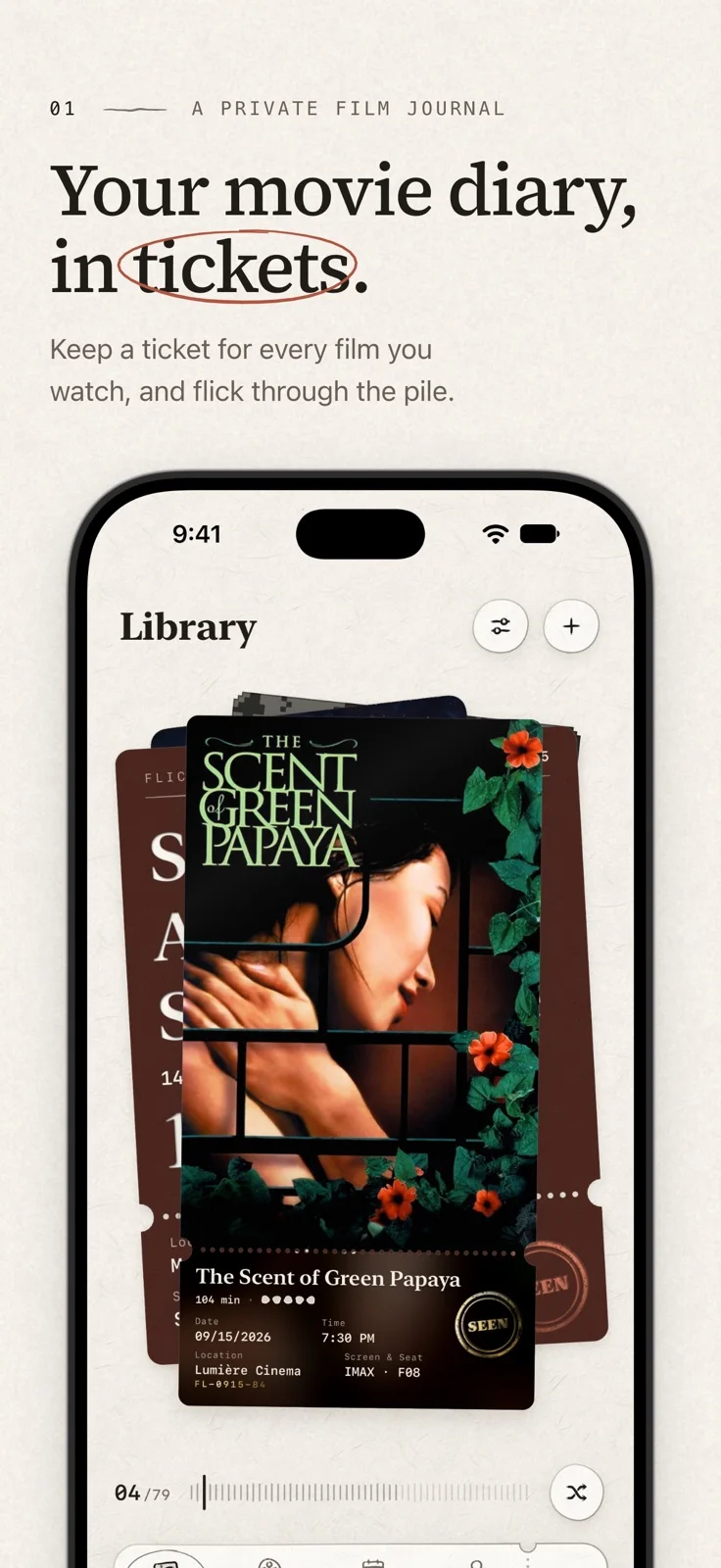
The last film you saw is enough to begin with. When was it, who came along, and what do you want to remember? If a ticket gathers those fragments into something worth revisiting, the animation has content behind it. Collections are often browsed without a specific goal: one film reminds you of another. A second page gives a flicked ticket somewhere visible to go, preserving a little of the feeling of handling objects. That pleasure is worth considering alongside more practical questions about keeping, syncing and exporting a diary you may want to read years later.
World Clock: compare the meeting while keeping the calendar
World Clock’s release notes place clocks beside selected-city details. Its Make a Plan feature puts a calendar on one side and people’s days on the other. That is a concrete example of an unfolded view helping with comparison rather than simply showing more rows.
The task is familiar: a time that looks convenient to the organizer may fall outside someone else’s working day. Moving between a time converter and a separate calendar forces you to remember one view while inspecting another. A paired view can keep that comparison in front of you.
Before downloading, check the cities you use, the calendar you rely on and the purchase conditions for Make a Plan. A useful addition to one part of scheduling need not replace the team’s whole toolset.
Picture an ordinary remote meeting: their afternoon is your evening, but moving earlier collides with something already in your calendar. Converting the time is not especially hard. Rechecking the other piece of information after every adjustment is the tiresome part. Keeping the calendar and local days beside each other targets that repetition. Start with two people and the commitments that matter, rather than filling the canvas with every city you know. Add participants when you need them. A bigger workspace should make a half-hour meeting easier to arrange, without turning it into an exercise in operating a control room.
Explore World Clock in DuoKits.
Ruply: keep the split list beside its detail
Ruply’s original App Store version history identifies the Duo layout in version 3.0.2: Splits uses a list-and-detail arrangement, while Analytics uses two columns. Our current metadata check found version 3.0.3 in the Indian storefront; availability elsewhere should be checked separately.
List-and-detail layouts sound ordinary because they have been useful on larger computers for years. Their value becomes clearer on a phone when selecting another item no longer replaces the surrounding list. You keep the context of what you are examining.
For someone comparing shared expenses, that could make navigation easier to follow. It does not tell you whether the app’s currency assumptions, bank-message features or settlement options fit your country. Evaluate those product choices before choosing a finance app for its Duo layout.
Two similar expenses make the list-and-detail benefit easier to understand. You want to know which outing a record belongs to while checking what went into it. Keeping the collection visible supplies that context. Clear titles and selection matter, though: it is possible to look at a newly selected amount while mentally attaching it to the old record. Those small cues make a two-column layout useful. They also explain why the layout should be considered alongside the rest of the product. If the regional assumptions, account model or ability to retain records do not fit, a pleasing split view is not enough reason to migrate financial information.
Trace Health: the record and its context remain together
Trace Health’s current store description and release notes describe one-handed cover-screen logging and unfolded layouts pairing symptoms with daily activities, and history with insights. The change is a clearer relationship between different parts of a record.
If you keep personal records, look for continuity: can you find the same item after changing views, and can you understand which period or entry an overview refers to? Those are interface questions. An appealing chart or a Duo-specific layout is not evidence that an app can diagnose a condition or establish a cause.
Logging and looking back happen at very different moments. When you feel unwell, you may only want to make a quick entry and put the phone away. Days later, sitting down with a run of records, a larger view can be welcome. Giving each moment suitable space seems kinder than demanding a dashboard for every entry. During review, dates and selection should make clear which records the chart concerns. Storage, synchronization and export also deserve attention for sensitive information. A visible association can help organize a question, but it cannot establish that one change caused another or replace medical advice.
Explore Trace Health in DuoKits.
Axios: an illustration and its reading can share a spread
Axios! Orthodox Saints describes a two-page spread with an icon on one page and a saint’s life on the other. Its Full Access offering also pairs the saints list with the selected entry, keeping content clear of the fold.
The benefit depends on the relationship between the two panes. Two unrelated columns are just two columns. An image that helps explain the passage beside it can give you a reason to keep both visible. For reading apps, that relationship may matter more than a page-turn animation.
While reading a life, the illustration can remain beside the passage instead of requiring another trip to find it. Art references, travel maps and illustrated lessons have similar needs. The two pages need not be symmetrical; you should simply be able to find the reference when a detail makes you glance across. A persistent index can also help when moving between entries. There is still a reading-width decision to make: text should not be squeezed into a strip to show off two pages, or stretched into uncomfortably long lines. The extra space should support that back-and-forth, rather than only reproduce the outline of a book.
Compare three arrangements using the same task
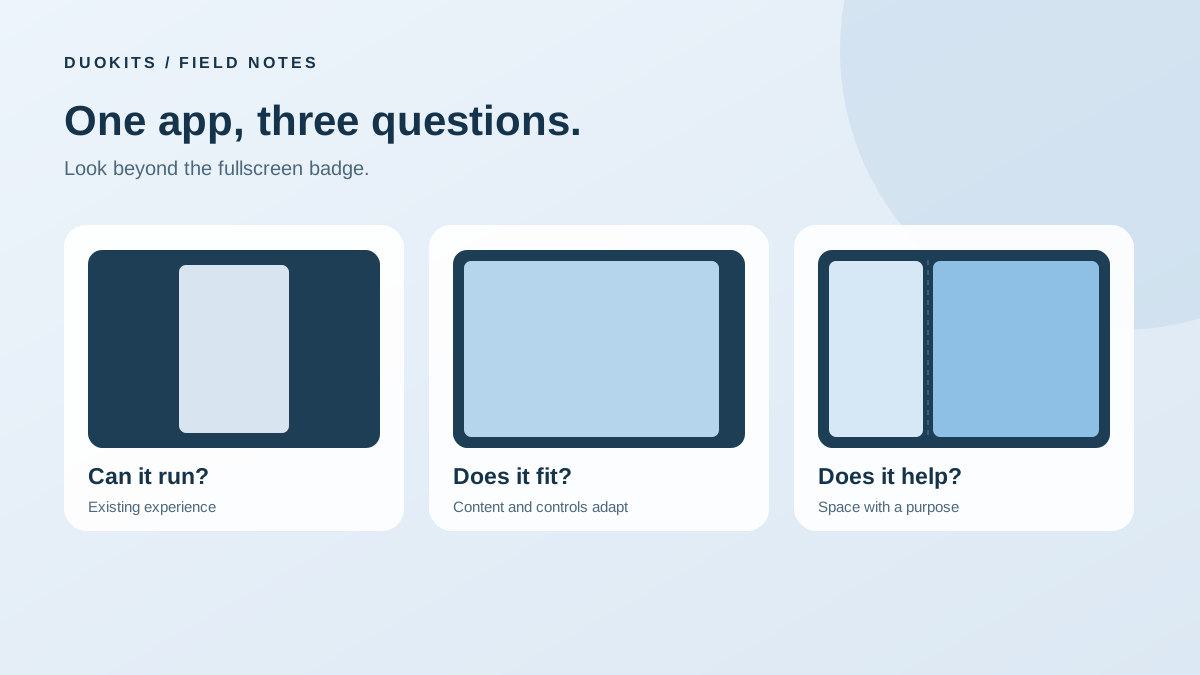
To judge the fold, consider one activity in three arrangements: a compact screen showing one view at a time; a larger screen showing the same content; and an unfolded view placing related information or controls together. Compare interruptions within the task, rather than assuming one posture is inherently better.
For a record lookup, the compact flow might mean entering the list, opening detail and going back. A larger single column could reduce scrolling while keeping that navigation. A list beside detail could preserve the scene while you select another item. Each arrangement addresses a different problem.
| Your main obstacle | Design to investigate | Question to ask |
|---|---|---|
| Content is too small | More space for content | Are scale and reading distance appropriate? |
| You keep returning to a list | Paired information | Is the selected item unmistakable? |
| You cannot operate while following a demonstration | Separate content and controls | Can you reach controls without losing an important cue? |
| You want a physical action to matter | Posture-driven activity | Does the action help begin, maintain or end the activity? |
| You lose your place when the view changes | Continuity | Are the content, selection and reading position recognizable? |
Find the row closest to your own routine and leave the others aside for now. A dedicated control area need not be a requirement if you never practice with an instrument. If you constantly compare records, keeping context may matter more than a hinge animation. A smaller shortlist makes the benefit easier to recognize.
Record one complete sequence
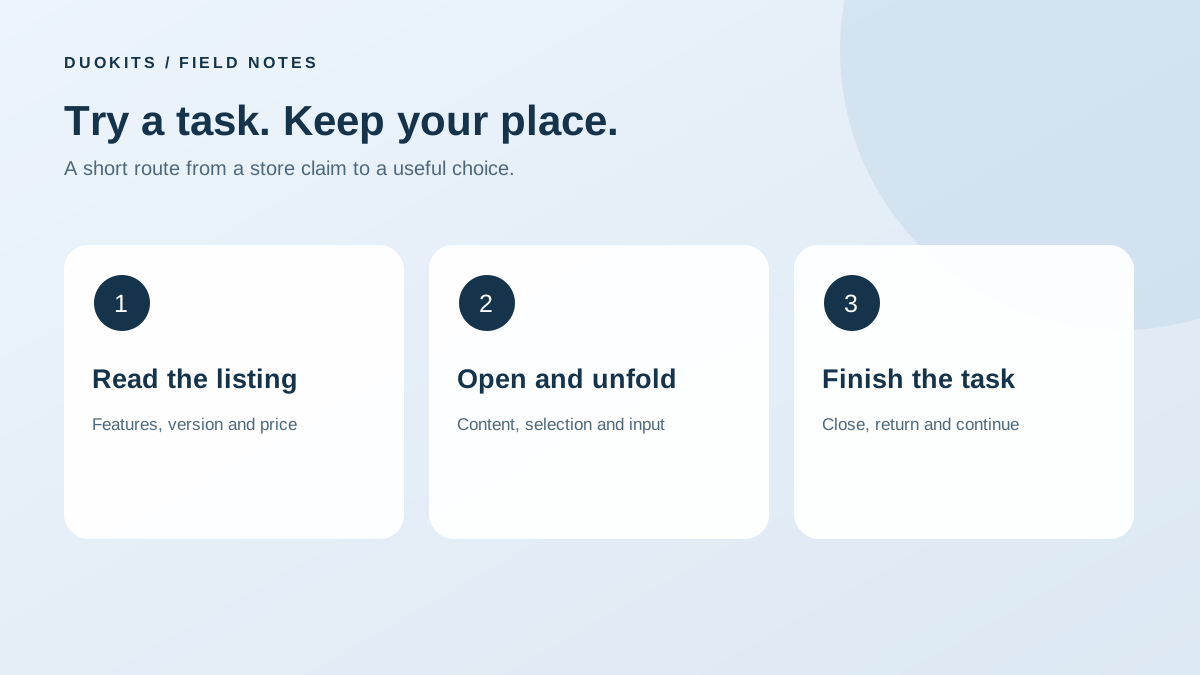
A first attempt can be brief but complete: enter with a real goal, make a selection or operation, change the view and return to the task. Opening the phone once on the home screen tells you little about the rest of an app.
Notice where you used to stop, what remains visible now and whether you need to find your place again. The next update can be compared with that same little task: two fewer trips back is easier to remember than a vague sense of improvement. Keep the exercise small enough to fit ordinary use. You are choosing a tool, not preparing a report.
Give developers a problem they can recognize
“Please support Duo” communicates demand but not a starting point. A task, the information that disappeared and the extra step it caused make feedback more useful. “After selecting another record I must return to the list to understand its position” says more than “this screen looks bad.” “The controls obscure the cue I follow in the video” is more actionable than simply requesting larger buttons.
These descriptions do not prescribe an implementation. They identify a problem in a concrete activity. Developers can use the same approach to explain a design: where the task begins, what each area is responsible for, what survives the transition and how someone returns after leaving. A clear story is more useful than another generic optimization claim.
Choose an app by what remains visible
A practical evaluation can start with one sentence: “While I do this, I need to keep that in view.” The sentence exposes whether you need a bigger canvas, paired information, separate controls or a posture-driven activity.
Then consider four points:
- Context: Does selecting an item preserve the list or reference that led you there?
- Reach: Are controls somewhere you can comfortably use in the intended posture?
- Continuity: Does the same work remain recognizable when you change the view?
- Interruption: What happens when you leave the activity, close the phone or need the compact screen?
Then check language, region, purchase conditions and the format in which you can keep your data. A delightful interaction cannot supply a missing core feature. With expenses, personal health records or collections, being able to retrieve the material years later may matter more than the first reveal.
There is also no need to install everything. Pick one activity where your current phone makes you repeatedly switch views. One well-chosen app can tell you more about whether the fold suits your habits than a folder full of optimized badges.
Fullscreen is the beginning of the story
Our compatibility guide explains the basic difference between running an app and adapting its layout. The examples here go further: the interesting change is often the relationship between information, controls and physical posture.
For developers, a useful design review starts from that relationship. Describe what the left and right—or upper and lower—areas are responsible for. Describe which information survives a transition. If the only answer is “everything becomes larger,” there may still be room to make the extra space more purposeful.
For owners, the same principle makes discovery easier. Browse the app directory for an activity you already care about, then inspect the specific interaction and original source. The fold earns its place when it removes an interruption, makes a comparison easier or gives an action a meaning that a flat screen did not have.
Sources & references
- Apple — developer showcase, October 22 ↗
- World Clock — original App Store listing ↗
- DP8 — original App Store listing ↗
- Charnière — original App Store listing ↗
- Volet — original App Store listing ↗
- Flicit — original App Store listing ↗
- Ruply — version history — original App Store listing ↗
- Trace Health — original App Store listing ↗
- Axios! Orthodox Saints — original App Store listing ↗